Understanding the Keyword Interface in Clerq Apps
This is a general article that covers how to use keywords across all Clerq apps. While the keyword function all share the same user interface, their effects on results will differ based on where they are used.
For more information on the effects of keyword queries based on where they are used, have a look at What does a keyword query do? in our FAQ article.
Clerq seamlessly integrates keyword with its advanced semantic search capabilities, offering users the best of both AI and traditional boolean search approaches. Keyword may be employed to ensure specific terms of art are captured both in the Clerq Search and Monitor apps.
See our Introduction to Boolean Logic article to better understand how boolean logic works if you are not familiar with it already.
How Keywords Work in Clerq
You will see the keywords user interface (UI) across several places in our apps:
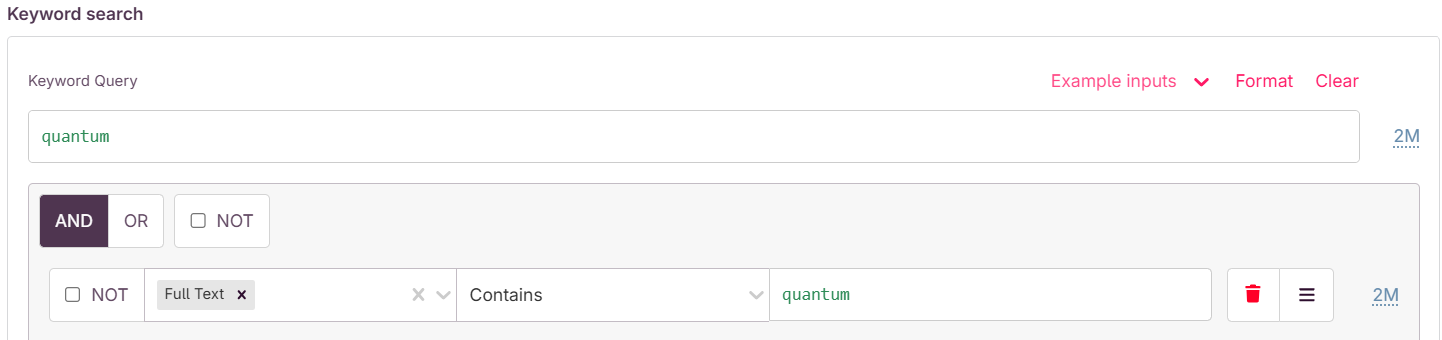
It consists of two sections. The first section consists of a Expression Editor where you can directly write a keyword search query using our keyword query language. This field allows for fast input of keyword query, and is particularly useful for more complex queries. We also apply syntax highlighting to the input for increased readability.
The second section is the Guided Builder, where keyword rules can be created and grouped. The form provides a helpful live visualization of keyword queries typed in the first section, as well as a more beginner friendly way to crafting keyword queries.
Example Inputs
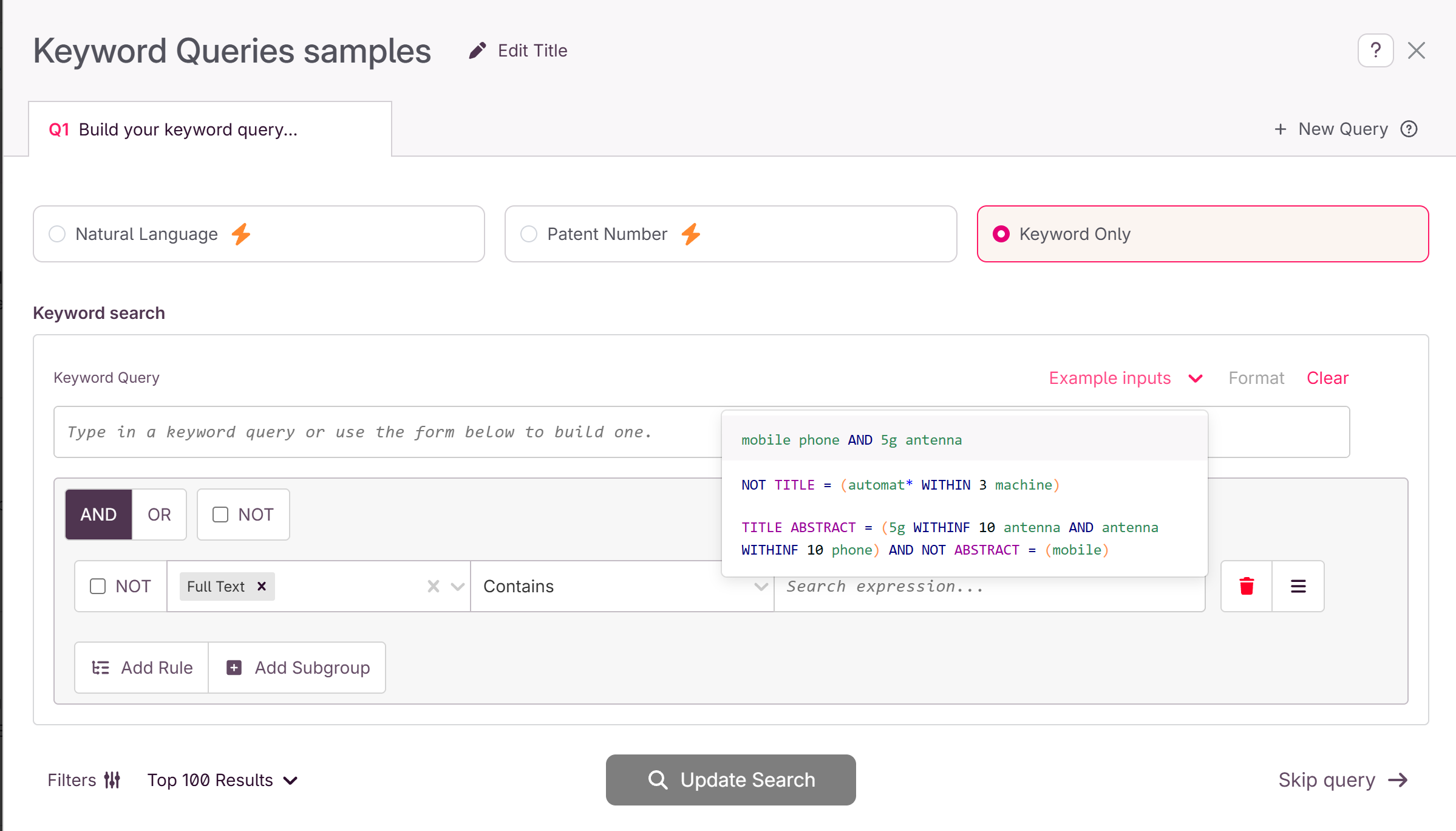
To get started, open the Example inputs dropdown by clicking on it and selecting one of the provided examples to familiarize yourself with the interface:
Using the Guided Builder
The guided builder is synced with the text input field, so updates in one will reflect in the other in real time. The live sync feature should help with learning the keyword query language.
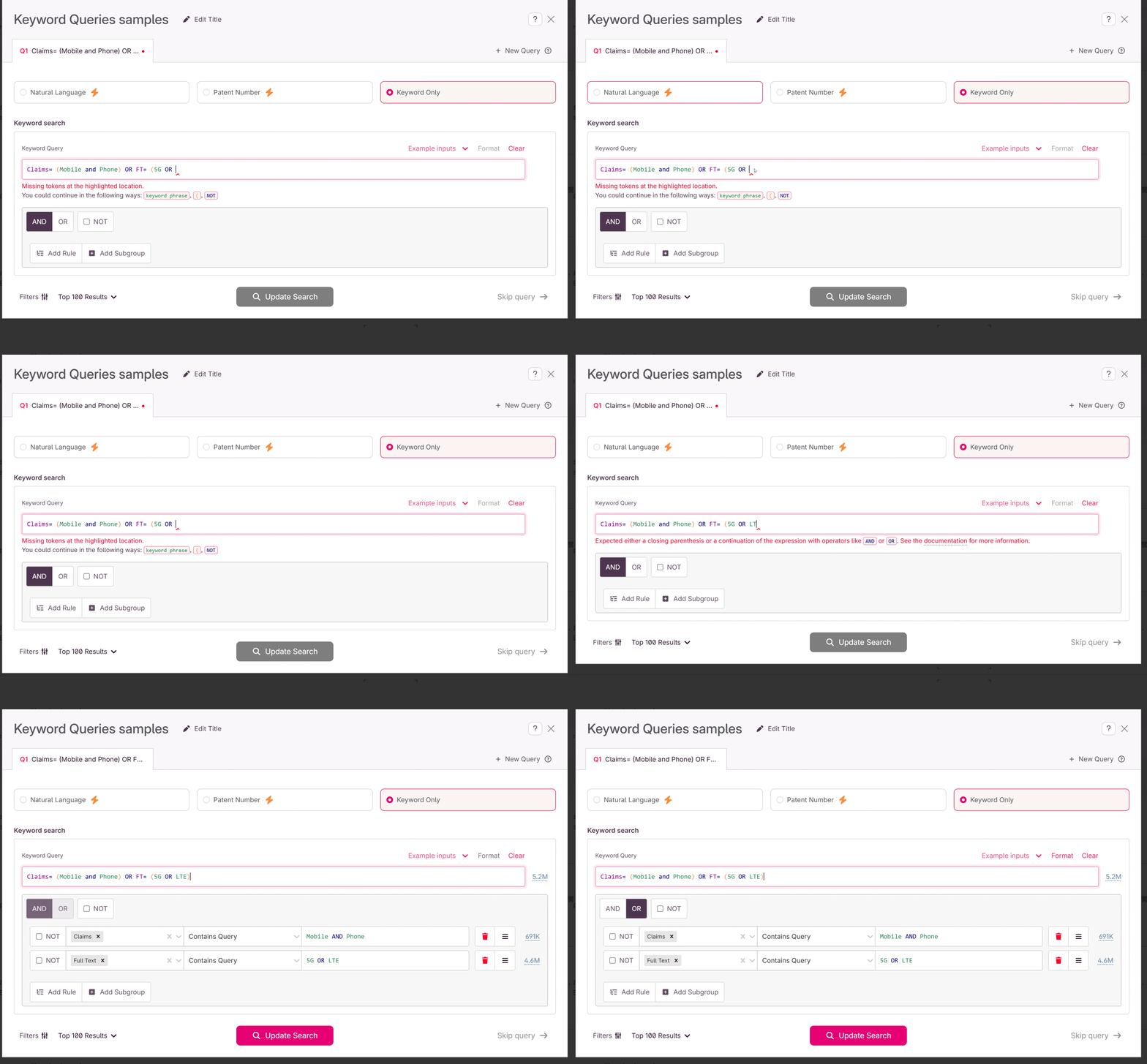
The guided builder lets you construct a keyword search visually, without writing the query yourself. It stays in sync with the text input field in real time, so anything you build in one appears in the other. If you're still learning the keyword query language, watching the text update as you build is a good way to pick it up.
Building your search
Start by editing the default rule that's already there, or use the buttons to add more rules and groups. Rules and groups can be nested inside one another, and you can drag and drop them to rearrange.
Rule types
Clerq supports four:
- Contains — checks whether a phrase appears in the fields you've selected. For example,
mobile phone. - Contains query — checks whether a full logical query appears in the selected fields. You can use the boolean operators from the keyword query language (
AND,OR,NOT,WITHIN,WITHINF) and parentheses right inside the rule's input field. For example,ai OR artificial intelligence. - Ordered proximity — checks that two phrases appear within a set distance of each other, in the order you specify. You choose the maximum distance.
- Unordered proximity — the same, but the phrases can appear in either order.
Fields
Each rule can search one field, several fields, or Full Text to search across all of them at once.
Groups and operators
A group links the rules and subgroups inside it with a boolean operator:
ANDrequires every rule in the group to match.ORrequires at least one of them to match.
Both rules and groups can be negated, which excludes matches instead of including them.
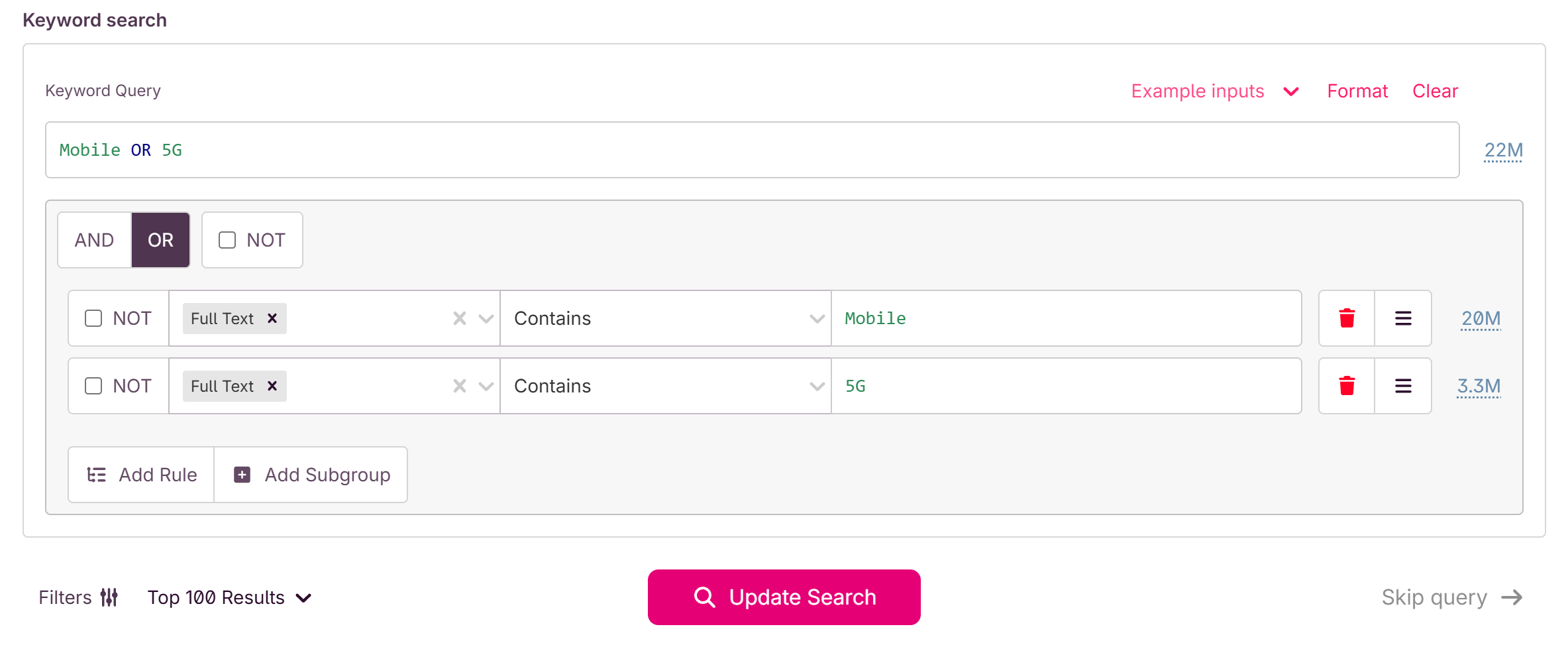
In the example below, a parent group uses OR to link two rules — one for mobile , one for 5g . The search returns any result where either term appears.
Formatting Complex Queries
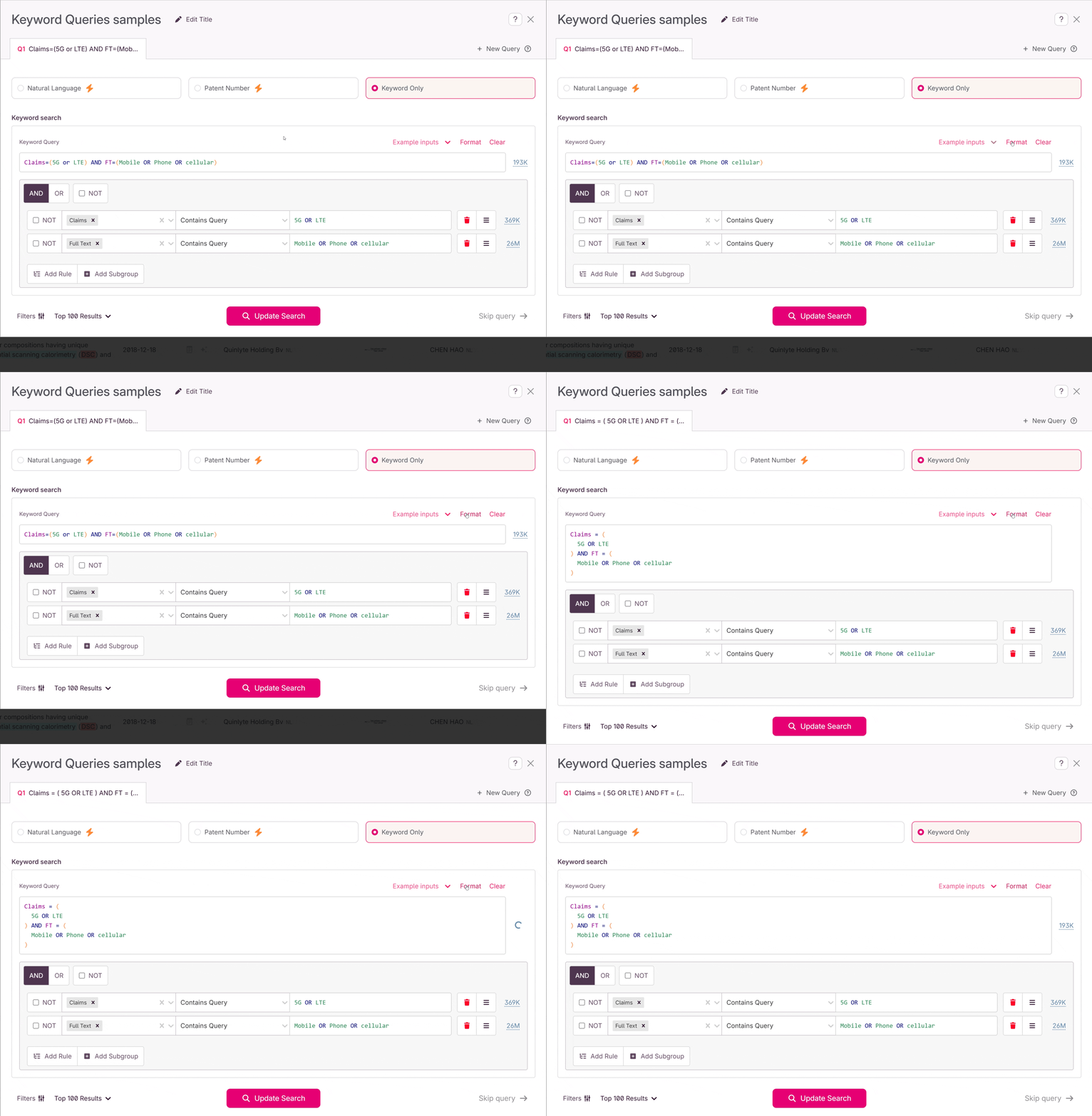
To help out in writing long queries, we allow users to split the input across multiple lines and indent it, just as with regular code. We also provide a Format button which can automatically apply the aforementioned formatting.
Keyword Query Text Input Error Messages
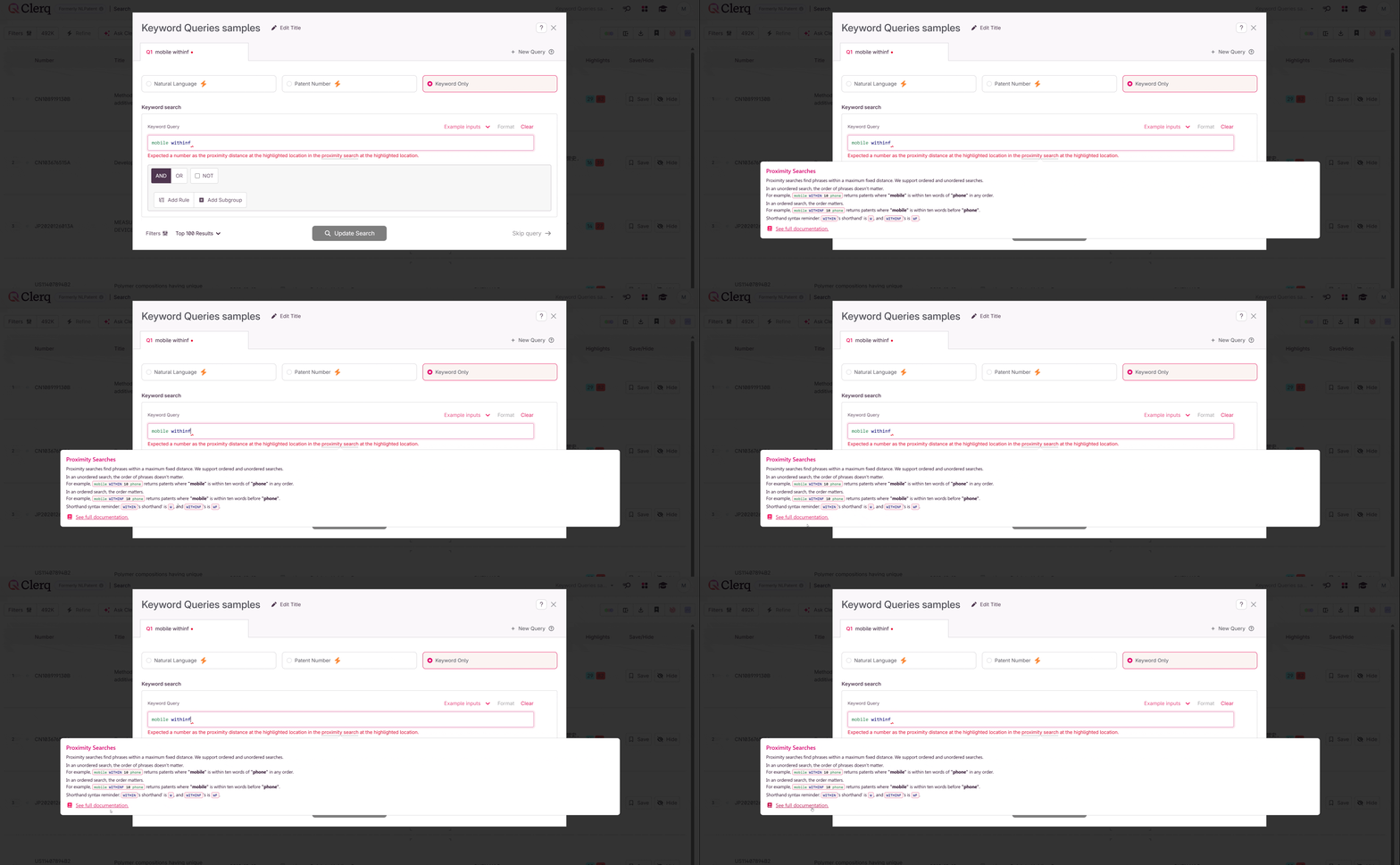
While typing a query directly, you will be guided with helpful messages and errors containing relevant documentation to your input, which should assist you in writing a correct query. To view the relevant documentation, simply hover your mouse above the words underlined with a dotted line:
Phrases
You can search for a single word or for a phrase made up of several words. Either way, Clerq searches for exactly what you type.
A rule set to quantum returns results containing that word. A rule set to mobile phone returns results containing that exact phrase, with the words together and in that order — not results where "mobile" and "phone" happen to appear separately.
Note: throughout the rest of this article, "keyword" refers to whatever word or phrase you're searching for.
Wildcards
Wildcard matching allows you to expand your keyword queries by accommodating variations of specific keywords. Understanding how to use single and multiple-character wildcards can significantly enhance the flexibility of your queries.
Single character wildcard: ?
Employ the ? symbol to replace a single character. For example:
wom?nwould match both woman and womenreven?ewould match both revenge and revenue
Optional single character wildcard: !
The ! wildcard symbol is similar to the previous one, but the character at that position can also be completely missing. For example:
colo!rwould match both colour and color
Multiple character wildcard: *
Use the * symbol to replace zero or more characters. This can be used at the end or in the middle of a term. For example:
electri*will filter for electricity, electrical, electric, and so on.
Wildcard usage in phrases
You are free to use wildcards inside phrases as well. For instance, searching for colo!r pattern would match both "colour pattern" and "color pattern".
Wildcard specificity
To ensure the speed of our keyword query system, we impose a limit of 128 alternatives matched per word with wildcards. If the wilcarded word you provided matches more than this number of alternatives, the keyword query will fail and you will get an error asking you to refine your keyword terms.
For example, if you were to search for *ing or s* , each of these would match too many alternatives and will result in an error.
This limit applies per word, not per phrase, so you can still craft phrases with wildcarded words even if the phrase itself would match more than the alternative count limit.
Avoid non-wildcard special characters
We do not perform searches for non-wildcard special characters inside phrases, such as hyphens, apostrophes or underscores. Therefore, these are not allowed in your phrases. For characters which separate words, such as hyphens or underscores, you can use spaces instead. A search for full stack will match full stack, full-stack, full_stack, and any other special character between the two given words.
Using Quotes for Reserved Words and Numbers
Reserved words or numbers may not be used directly as a word in a keyword because they're used to construct the surrounding query.
Here is a full list of the reserved words from our keyword query language (casing does not matter):
TITLE,TI,ABSTRACT,AB,CLAIMS,CL,DESCRIPTION,DSC,FULL_TEXT,FT,AND,OR,WITHIN,W,WITHINF,WF,NOT.
This also applies to numbers that are not within a word, e.g. 100 . If the number does appear inside a word, e.g. formula100 , you do not need to quote it.
To use reserved words or numbers inside your phrases, you can wrap your phrase in double or single quotes. A search for mobile AND phone will return results that contain both mobile and phone, while a search for "mobile phone" will return results that contain the phrase mobile phone.
Similarly for numbers, typing in 300 spartans will result in an error being shown, but you can avoid this by quoting the phrase with single or double quotes: "300 spartans" will be allowed.
Practical Examples
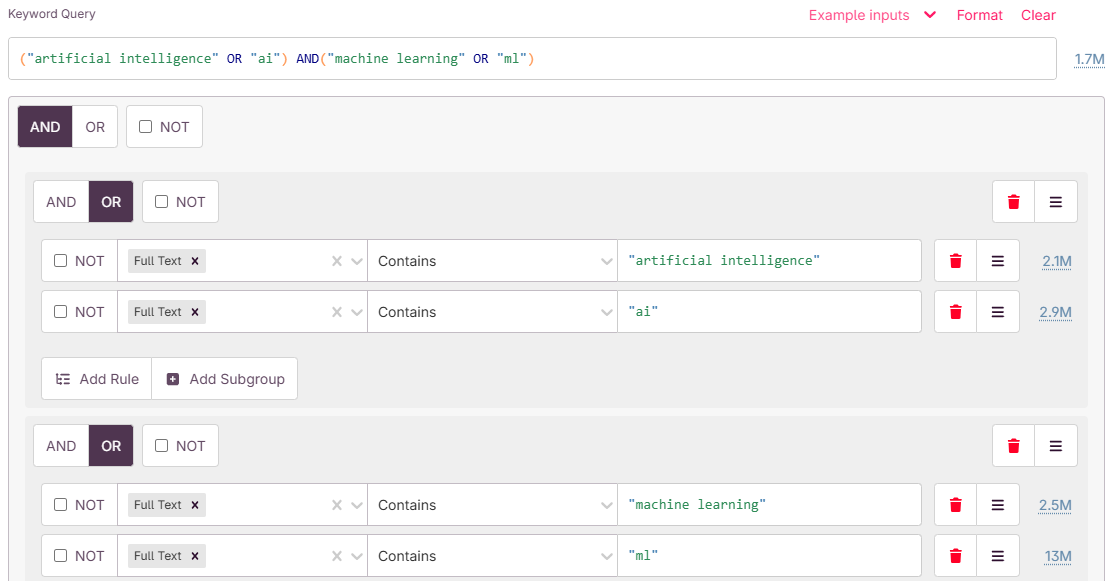
- You are looking for patents that contain the words
AIandMLin all parts of the patents. You want to ensure that both the acronym and the fully spelled word is considered. What would the keyword input look like?
- You are looking for patents in semiconductors. You know that you are looking for semiconductors that contain
silicon. Specifically, you’d like to look for patents that contain the wordsiliconwithin 5 words of and beforechip, and within 3 words ofsemiconductorin any order. What would your search string look like?
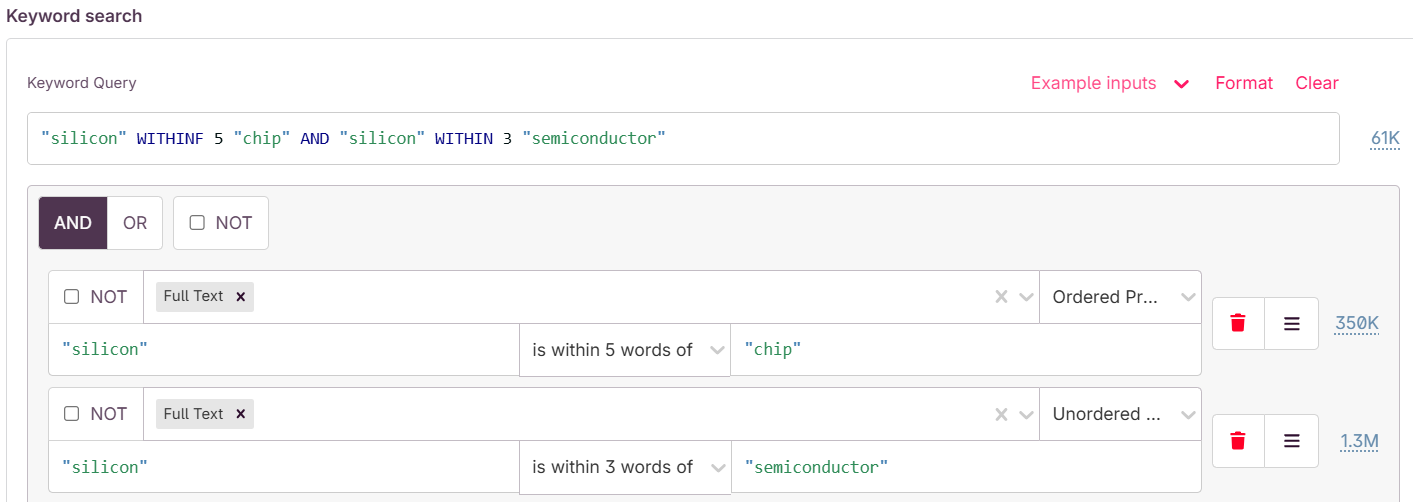
-
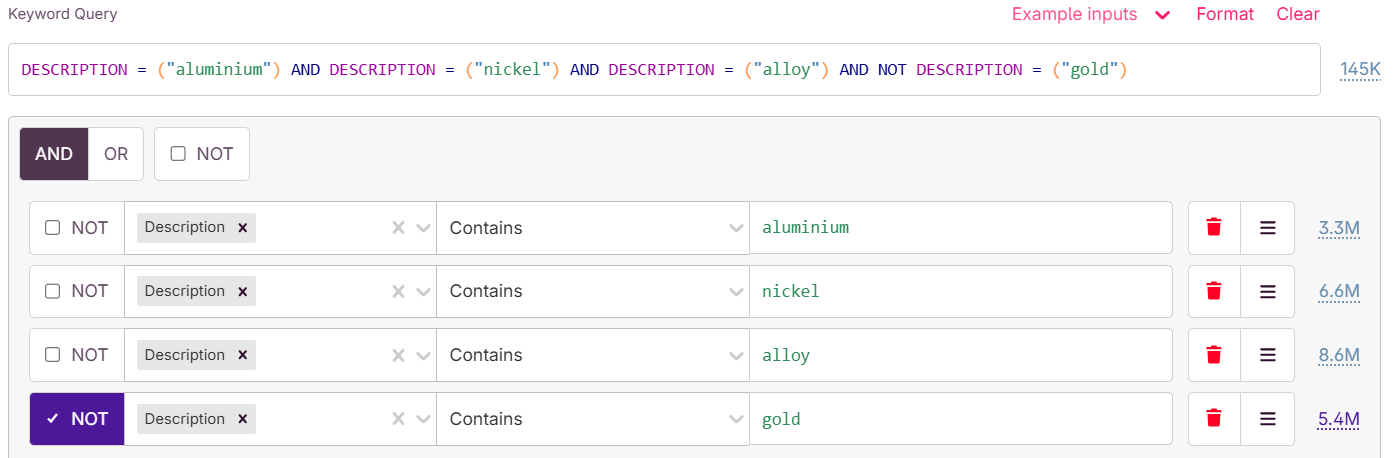
You’re looking for a composite alloy of aluminum and copper, for an application in building materials. You don't want gold to be involved in the alloy, and you want to only search in patent descriptions. Keeping in mind the the American vs. British spelling of aluminum (
aluminumvsaluminiumrespectively), how would you craft a string that ensures the wordsalloyalong withalumnium,nickelare mentioned within the patent description, but notgold?Here we have two options, a longer one where we define rules for each word, and a shorter approach where we type in a keyword query directly inside the rule text input field.