
Connecting the MCP to Claude
What you'll need
- A Claude account. For Team and Enterprise, the Owner will need to add Clerq MCP for the organization first.
- A Clerq account. Searching for patents needs the Search & Intelligence plan. Looking up patents by number works on every MCP plan.
The Clerq MCP is in Claude's connector directory and is marked as Anthropic verified.
EU accounts
EU accounts add the EU MCP as a custom connector, using the server address https://mcp.eu.clerq-ip.com/mcp. The US server is https://mcp.us.clerq-ip.com/mcp. Always include the /mcp at the end.
Steps
- Sign in to Claude.
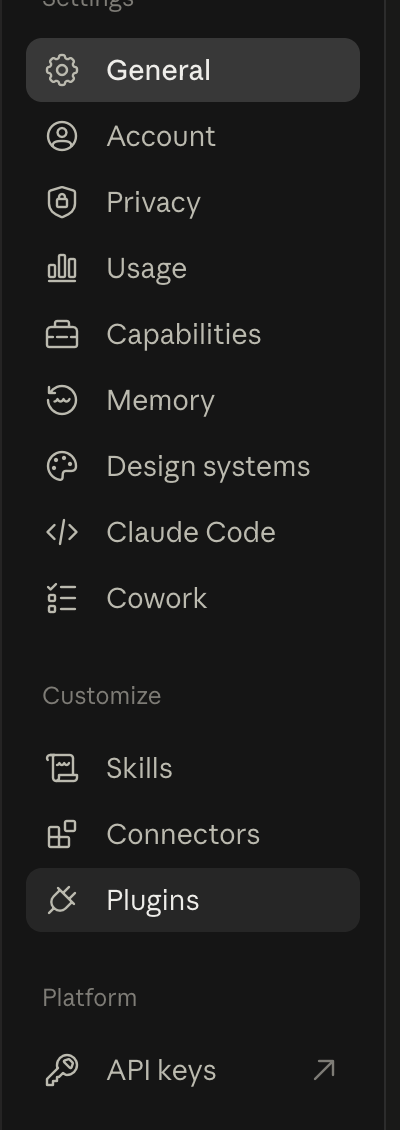
- Open Connectors under Customize in Claude's settings. From a chat, you can also select the + button, then Connectors, then Manage connectors.
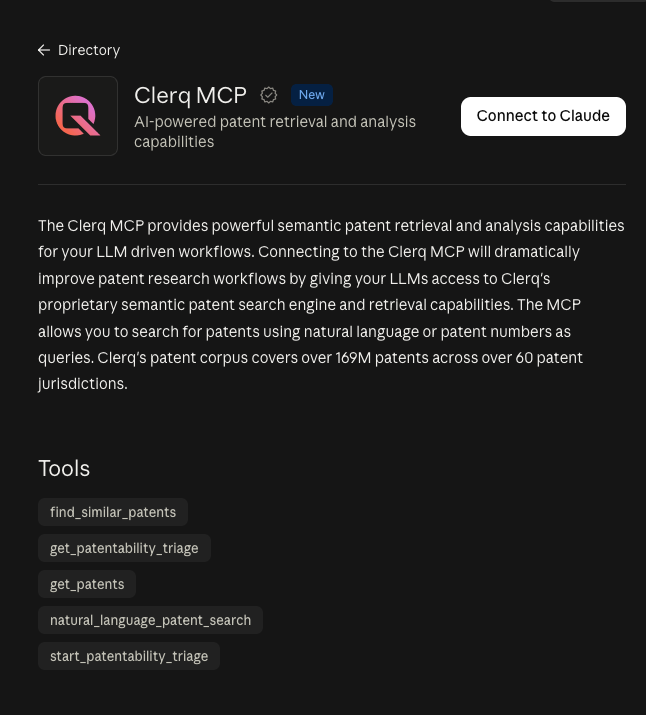
- Select the Discover tab and search for Clerq MCP.
- Select Connect to Claude.
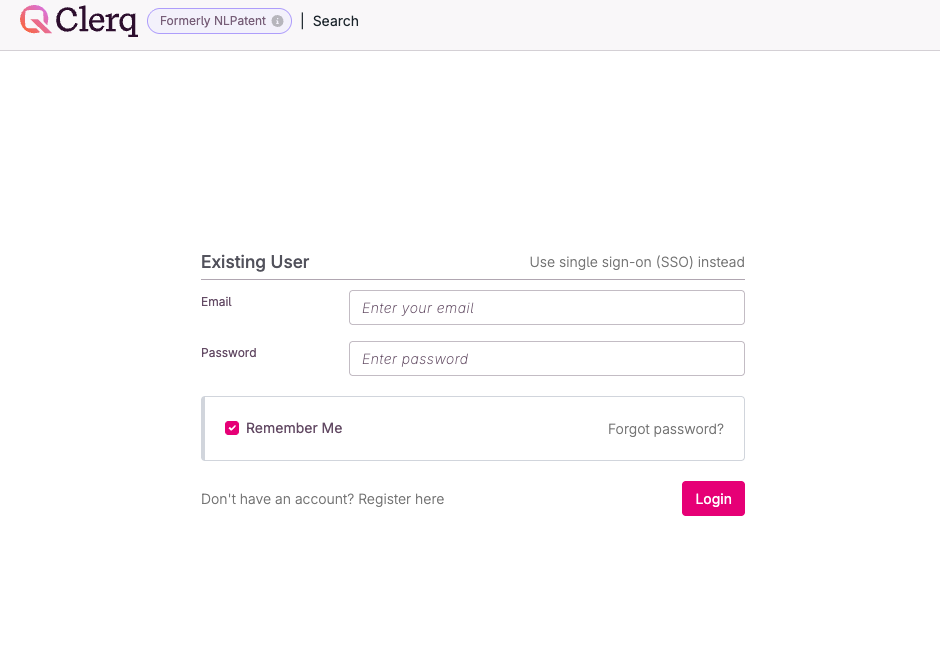
- On the Clerq sign-in page, enter your email and password, then select Login. If your company uses SSO, select Use single sign-on (SSO) instead.
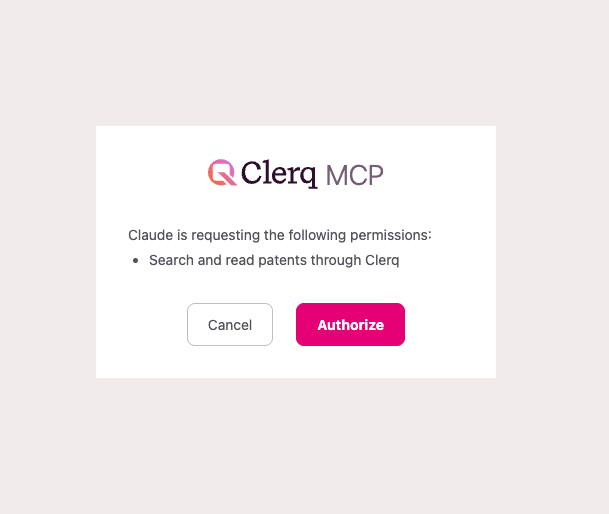
- Clerq shows the permission Claude is asking for, "Search and read patents through Clerq". Select Authorize.
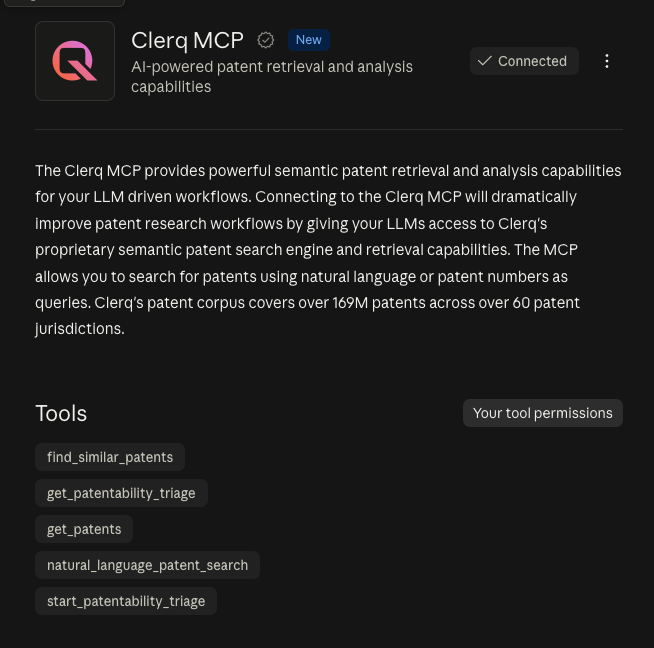
- Claude shows Clerq MCP as Connected. In your chat, select the + button, hover over Connectors and switch Clerq MCP on.
Checking it works
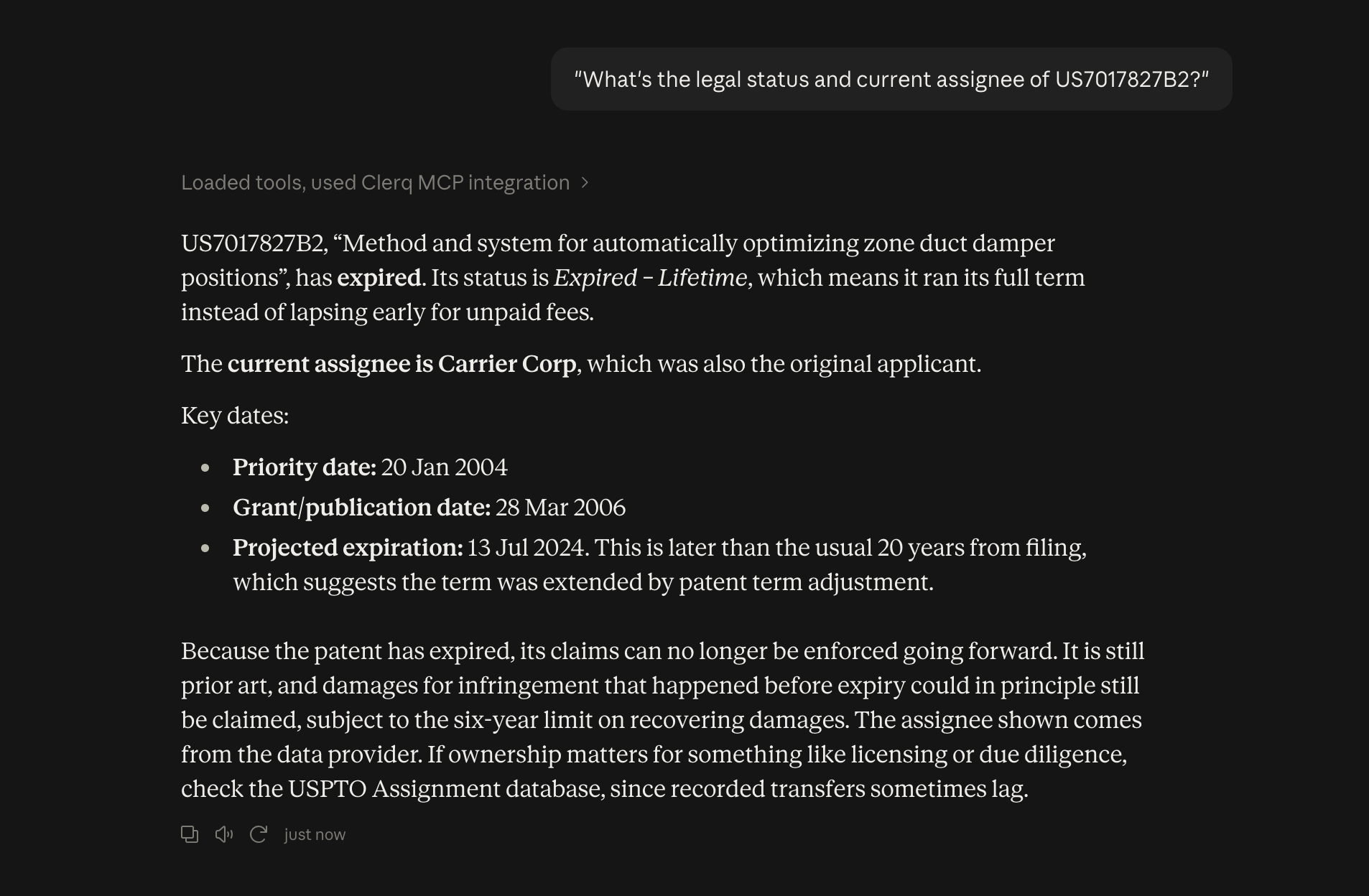
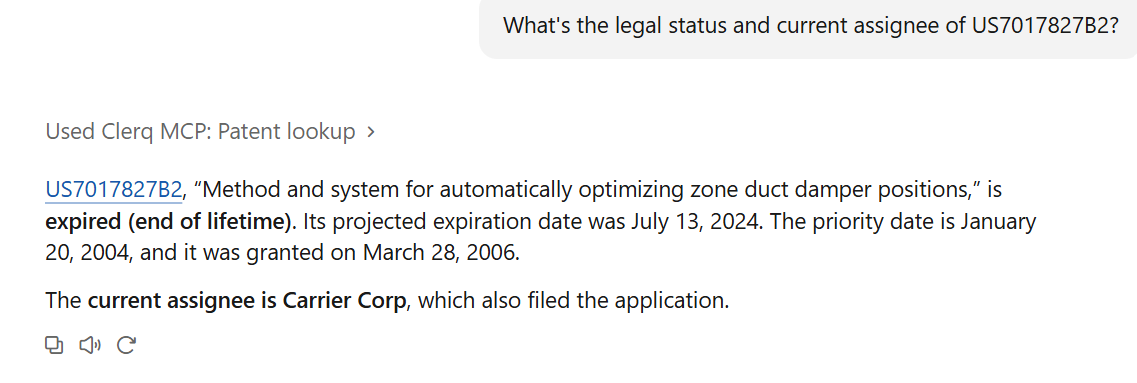
Ask: "What's the legal status and current assignee of US7017827B2?" If the status and assignee come back, it's connected.
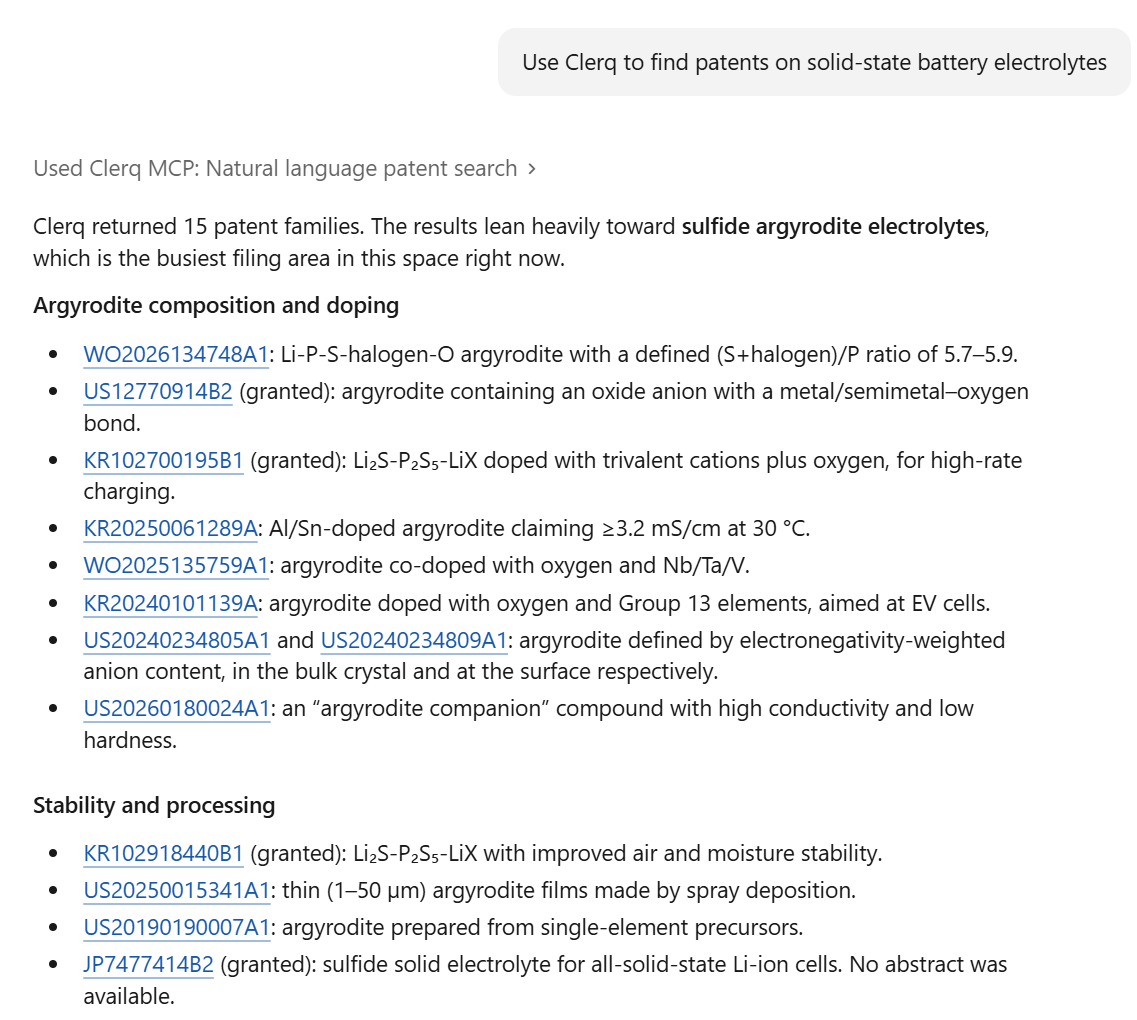
To test search, which needs Search & Intelligence, ask: "Use Clerq to find patents on solid-state battery electrolytes."
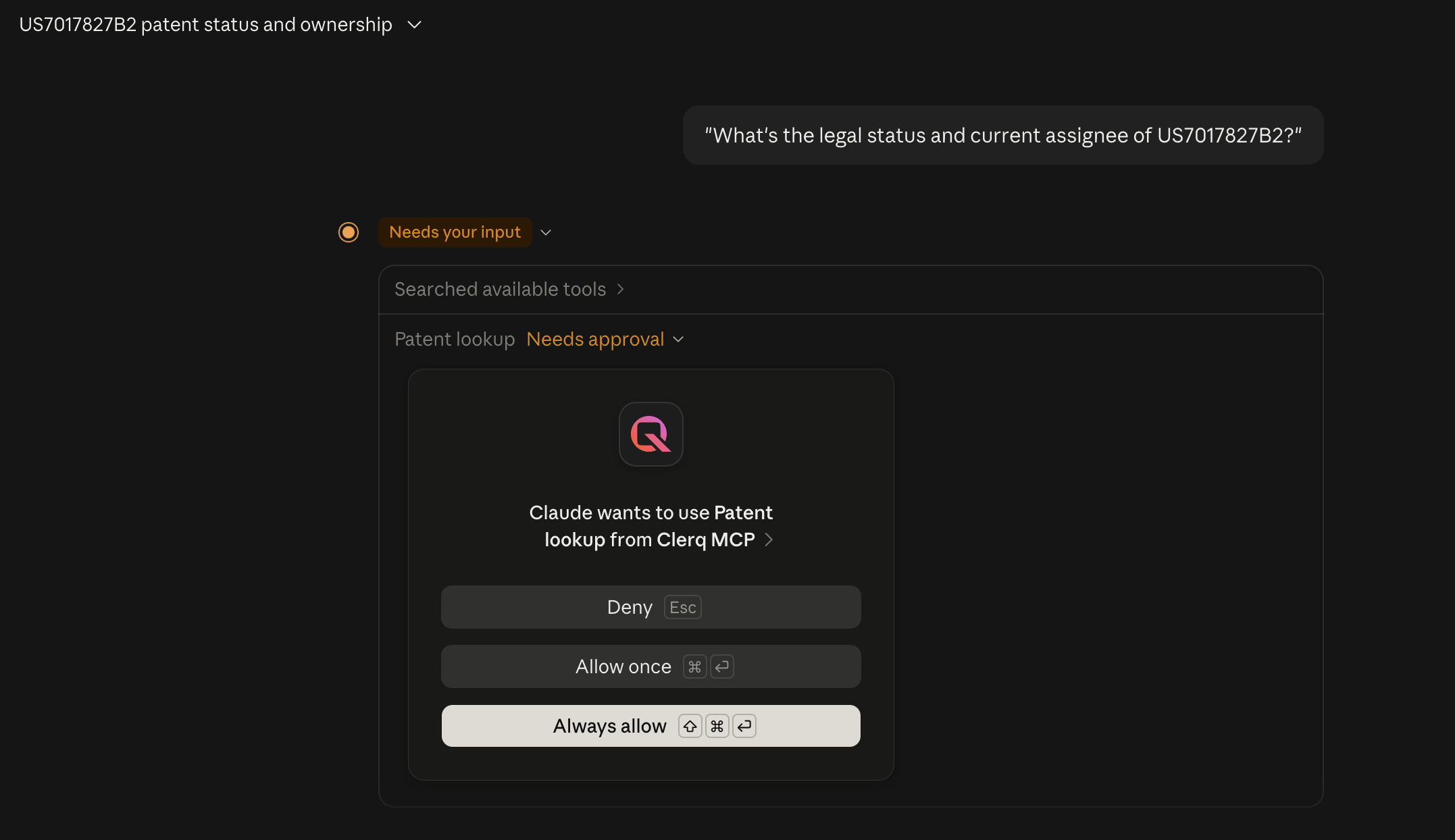
The first time Claude uses a Clerq tool, it asks for approval with Deny, Allow once and Always allow. Allow once approves that request only.